
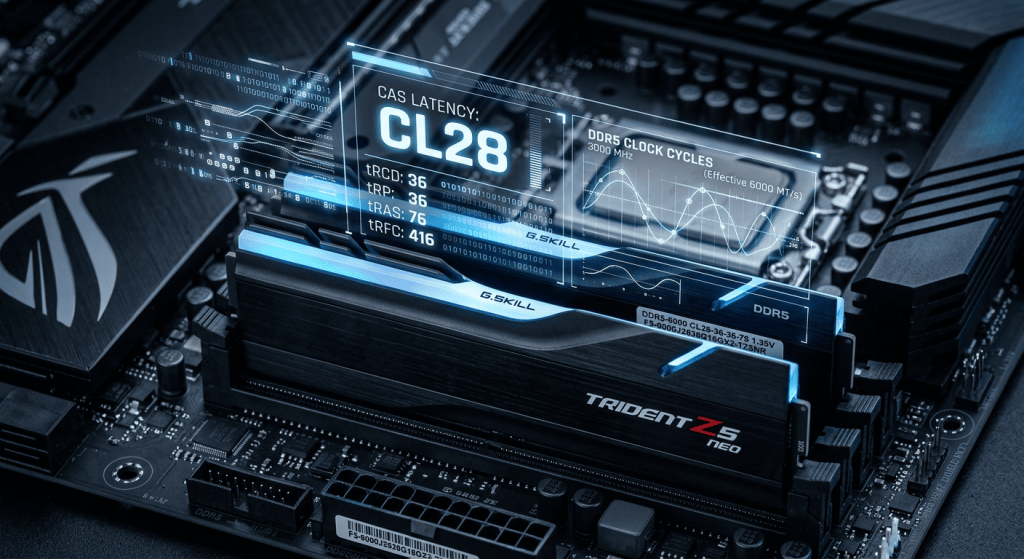
You’ve enabled XMP or EXPO in your BIOS and think your RAM is running at its peak. For most users, that’s true. For enthusiasts, it’s just the starting point. Those pre-packaged profiles are designed for mass compatibility, not maximum performance. They often use loose timings and higher-than-necessary voltages to ensure they work on a wide range of motherboards and CPUs. The real, untapped performance—the kind that improves 1% low frame rates and makes your system feel snappier—is hidden within the complex world of manual timings and subtimings.
This guide is a deep dive into that world. It’s for those who aren’t afraid of the BIOS and are willing to trade some time and patience for measurable performance gains. We will move beyond one-click profiles to manually tighten primary, secondary, and even tertiary timings. You’ll learn what CAS Latency, tRCD, tRP, and tRAS actually mean, why secondary timings like tRFC are arguably more important for gaming, and how to find the lowest stable voltage for your memory kit.
I’ve spent hundreds of hours staring at BIOS screens, running stability tests, and rebooting from failed overclocks to understand what works. The process is methodical, sometimes tedious, but the results are rewarding. A manually tuned memory kit can provide a 5-15% performance uplift in CPU-bound gaming scenarios, an improvement that often exceeds what you’d get from a minor CPU upgrade.
This isn’t a guide for the faint of heart. It requires a structured approach and a lot of testing. But if you’re ready to unlock the true potential of your hardware, let’s pull back the curtain on advanced RAM tuning.
The “Why” Behind RAM Tuning: Beyond Clock Speed
Before we dive into the BIOS, it’s crucial to understand why these adjustments matter. RAM performance isn’t just about the frequency (e.g., 6000MHz). It’s a delicate balance between speed (frequency), latency (timings), and the efficiency of the memory controller.
Latency vs. Bandwidth Explained
Think of it like this: bandwidth (determined by frequency) is the width of a highway, while latency (determined by timings) is the speed limit and the time it takes to get on and off an exit. A wider highway (high bandwidth) allows more cars (data) to travel at once, but if the speed limit is low and the exits are congested (high latency), the overall efficiency is poor.
When your CPU needs data that isn’t in its cache, it requests it from the RAM. The time it takes for the RAM to find and deliver that data is latency. In high frame rate gaming, the CPU makes thousands of these requests per second. By reducing the latency with tighter timings, you reduce the time your powerful CPU spends waiting, allowing it to process more frames. This is why a well-tuned DDR5-6000 kit can often outperform a poorly-tuned DDR5-7200 kit in gaming.
How Timings Impact CPU Performance
Timings are measured in clock cycles. A CAS Latency (CL) of 30 means there’s a 30-cycle delay from when the CPU requests data to when the RAM starts sending it. Lowering this to CL28 shaves off two clock cycles from every request. While this seems minuscule, when multiplied by millions of requests, the cumulative effect becomes significant, especially on minimum frame rates (1% lows), which are often dictated by CPU-wait times.
JEDEC vs. XMP/EXPO: The Starting Point
- JEDEC: These are the default, failsafe profiles your RAM runs at out of the box (e.g., DDR5-4800 CL40). They are slow but guaranteed to work on any system.
- XMP/EXPO: These are the manufacturer’s certified overclocking profiles. Enabling them is a one-click way to get the advertised speed (e.g., DDR5-6000 CL30). However, they are still “one-size-fits-all” and often use timings and voltages that are looser than what your specific RAM kit is capable of. Our goal is to go beyond these profiles.
Understanding Your Memory: ICs and Voltages
Not all RAM is created equal, even if it has the same advertised specs. The actual memory chips (Integrated Circuits or ICs) on the PCB determine its overclocking potential.
Identifying Your Memory ICs
The three main manufacturers of DRAM chips are Samsung, SK Hynix, and Micron. Within each, there are different revisions and bins. SK Hynix (specifically A-die) is currently the king for DDR5 overclocking, capable of high frequencies and tight timings. You can often find your IC type by looking up your RAM’s model number, but the best way is to use a tool like Thaiphoon Burner or check the SPD information in the BIOS. Knowing your IC helps you understand its limits and what voltages it prefers.
Key Voltages Explained
Manually tuning RAM requires adjusting several voltages. Pushing these too high can damage your RAM or memory controller. Always increase voltages in small increments.
- DRAM VDD / VDDQ: This is the main voltage supplied to the memory modules. For DDR5, XMP/EXPO profiles often set this between 1.25V and 1.4V. For manual tuning, you might push this to 1.45V, but going beyond requires careful temperature monitoring.
- CPU VDDQ / IVR Transmitter VDDQ (Intel) / VDDIO_MEM (AMD): This is the voltage for the memory controller on the CPU. It needs to be stable to handle high memory frequencies. Often, leaving this on “Auto” works well, but sometimes a small manual increase (e.g., to 1.35V) can improve stability.
- CPU System Agent (SA) (Intel) / SOC Voltage (AMD): This voltage powers various parts of the CPU’s uncore, including the memory controller. It’s crucial for stability. For DDR5, AMD’s SOC voltage should generally not exceed 1.30V to be safe, while Intel’s SA can be more forgiving.
The Tuning Process: A Methodical Approach
The key to successful RAM tuning is changing one thing at a time and testing for stability thoroughly. Never change multiple timings at once.
Essential Tools for Stability Testing
You cannot verify a RAM overclock by just booting into Windows and playing a game. You need dedicated software to stress the memory controller and check for errors.
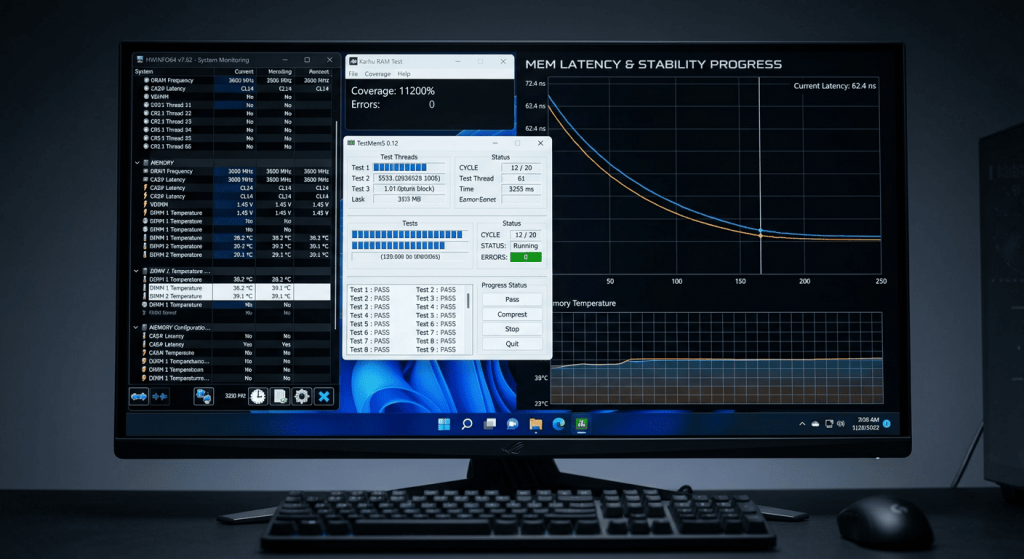
- TestMem5 (TM5) with Absolut or 1usmus_v3 Config: This is the gold standard for error checking. A 30-minute run is a good preliminary check, but true stability requires running it for several hours (3-10 cycles). Any error, even a single one, means your overclock is not stable.
- Karhu RAM Test: A paid but excellent and very fast error detector. It’s often able to find instability much quicker than TM5.
- y-cruncher (with VT3 enabled): This is a CPU and memory stress test. It’s excellent for finding instability related to the memory controller, especially at high temperatures.
Step 1: Finding the Max Frequency (Optional)
Before tightening timings, you can find the highest frequency your memory controller can handle. Set your timings to be very loose (e.g., CL40-48-48-90), set your desired voltage (e.g., 1.4V VDD/VDDQ), and start increasing the frequency (e.g., from 6000MHz to 6200MHz, then 6400MHz). Run a quick TM5 test at each step. This helps you find the ceiling of your CPU’s memory controller. For most AMD Ryzen 7000 CPUs, the sweet spot is 6000-6400MHz, as going higher can cause the Infinity Fabric to run in a 2:1 mode, increasing latency.
Step 2: Tightening Primary Timings
These four timings have the biggest impact on performance and are the first ones to tune. Always lower them one at a time, testing for stability after each change.
- tCL (CAS Latency): Start by lowering this by 2 (e.g., from 30 to 28). Run TM5. If stable, try lowering it by 2 again. If it fails, revert to the last stable value or increase DRAM voltage slightly.
- tRCD & tRP (RAS to CAS Delay & RAS Precharge): These two are often tuned together. Lower them by 1 or 2 at a time (e.g., from 36 to 34). Test for stability.
- tRAS (RAS Active Time): A good rule of thumb for tRAS is
tCL + tRCD. You can often set it lower, but this is a safe starting point. Once your other primary timings are stable, you can try lowering tRAS.
Step 3: Tightening Secondary Timings (The Real Gains)
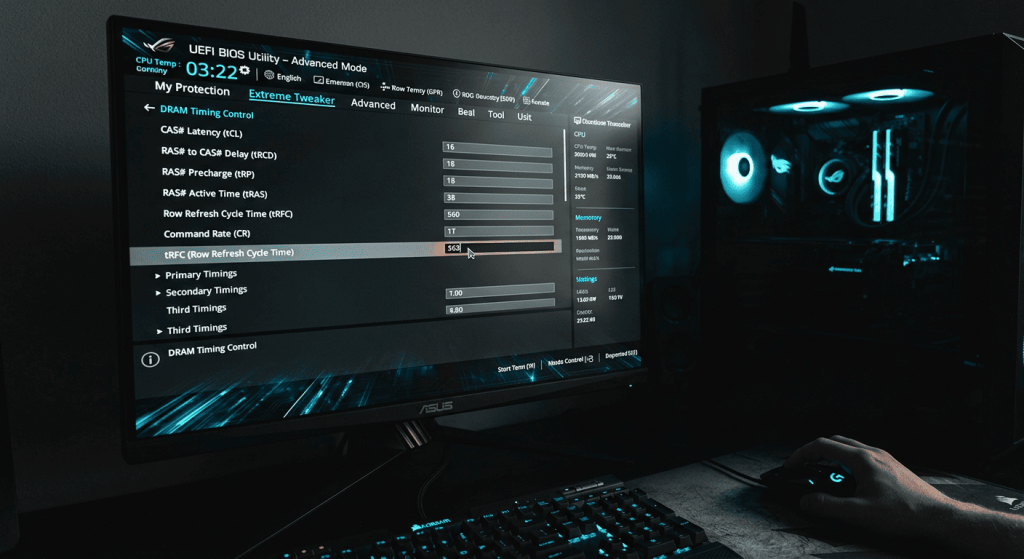
Secondary timings are where a lot of “free” performance is hidden. They have a significant impact on latency.
- tRFC (Refresh Cycle Time): This is arguably the most important timing for gaming performance after the primaries. It controls how long the RAM must wait after a refresh command. Lower is better. XMP profiles often set this very high (e.g., 500+). You can often lower this significantly. For my SK Hynix A-die, I was able to lower tRFC from 550 to 320. Lower it in steps of 20, then 10, testing stability each time.
- tREFI (Refresh Interval): This is the opposite of tRFC. Higher is better, as it means the RAM refreshes less often. The max value is 65535. Increasing this from the default can provide a small but measurable performance boost.
- tWR (Write Recovery Time): Can often be lowered significantly.
- tFAW (Four Activate Window): A good rule is to set this to
4 * tRRDS.
Platform-Specific Considerations: AMD vs. Intel
The tuning process has nuances depending on your platform.
AMD Ryzen (AM5)
For Ryzen 7000, the relationship between Memory Clock (MCLK), Unified Memory Controller Clock (UCLK), and Infinity Fabric Clock (FCLK) is critical. For the lowest latency, you want them all running in sync (1:1:1 ratio).
- MCLK:UCLK = 1:1: For DDR5-6000, your MCLK is 3000MHz. You want UCLK to also be 3000MHz. Most motherboards default to a 2:1 ratio (Half Speed) above 6000MHz, which doubles latency. You must manually set UCLK=MCLK in the BIOS.
- FCLK: You want your FCLK to be as high as possible while remaining stable, typically around 2000-2200MHz.
- Power Down Mode & Gear Down Mode: Disabling these can sometimes improve latency and stability for manual overclocks, but may also make it harder to achieve stability. Test with them on and off.
Intel (LGA 1700)
Intel platforms are generally more forgiving with high memory frequencies. The memory controller is strong and can often handle 7200MHz+ with a good motherboard.
- Gear Mode: Intel has Gear 1 and Gear 2. Gear 1 runs the memory controller at the same speed as the memory (1:1), offering the lowest latency. However, it’s very difficult to get Gear 1 stable above ~4000MHz for DDR4. For DDR5, you will almost always be running in Gear 2, which runs the memory controller at half speed. This is normal and expected.
- CPU System Agent (SA) Voltage: This voltage is critical for stabilizing the memory controller on Intel platforms, especially at high frequencies. You may need to manually tune this voltage.
Putting It All Together: A Final Checklist
- Identify Your Hardware: Know your RAM ICs, CPU, and motherboard.
- Establish a Baseline: Run benchmarks with your XMP/EXPO profile to measure your starting point.
- Save Your BIOS Profile: Before you start tweaking, save your stable XMP/EXPO profile in the BIOS so you can easily revert.
- Change One Timing at a Time: This is the golden rule.
- Test for Stability Thoroughly: Use TM5 or Karhu. A build is not stable until it passes hours of stress testing without a single error.
- Monitor Temperatures: High RAM temperatures (above 50-55°C) can cause instability. Ensure you have some airflow over your memory modules.
- Be Patient: This process can take days or even weeks. Don’t get discouraged by crashes. Every failure teaches you the limits of your hardware.
Advanced RAM tuning is the final frontier of system optimization for many enthusiasts. It’s a complex and time-consuming process, but it’s one of the few ways left to extract significant, free performance from a high-end system. The satisfaction of shaving nanoseconds off your memory latency and seeing that translate to smoother gameplay is immense.
While one-click XMP and EXPO profiles are a fantastic starting point, they leave performance on the table. By methodically tightening your primary and secondary timings, you are customizing your hardware’s performance to its absolute limit, not just a generic “safe” profile. The knowledge you gain about how your system works at a fundamental level is as valuable as the performance itself. If you have the patience, the world of manual RAM overclocking offers a deeply rewarding challenge.